Accounts
Nitrolaunch supports adding multiple Minecraft accounts of different types, such as standard Microsoft accounts or demo users.
Note
A valid Microsoft account that owns Minecraft is required to launch client instances.
Adding Accounts
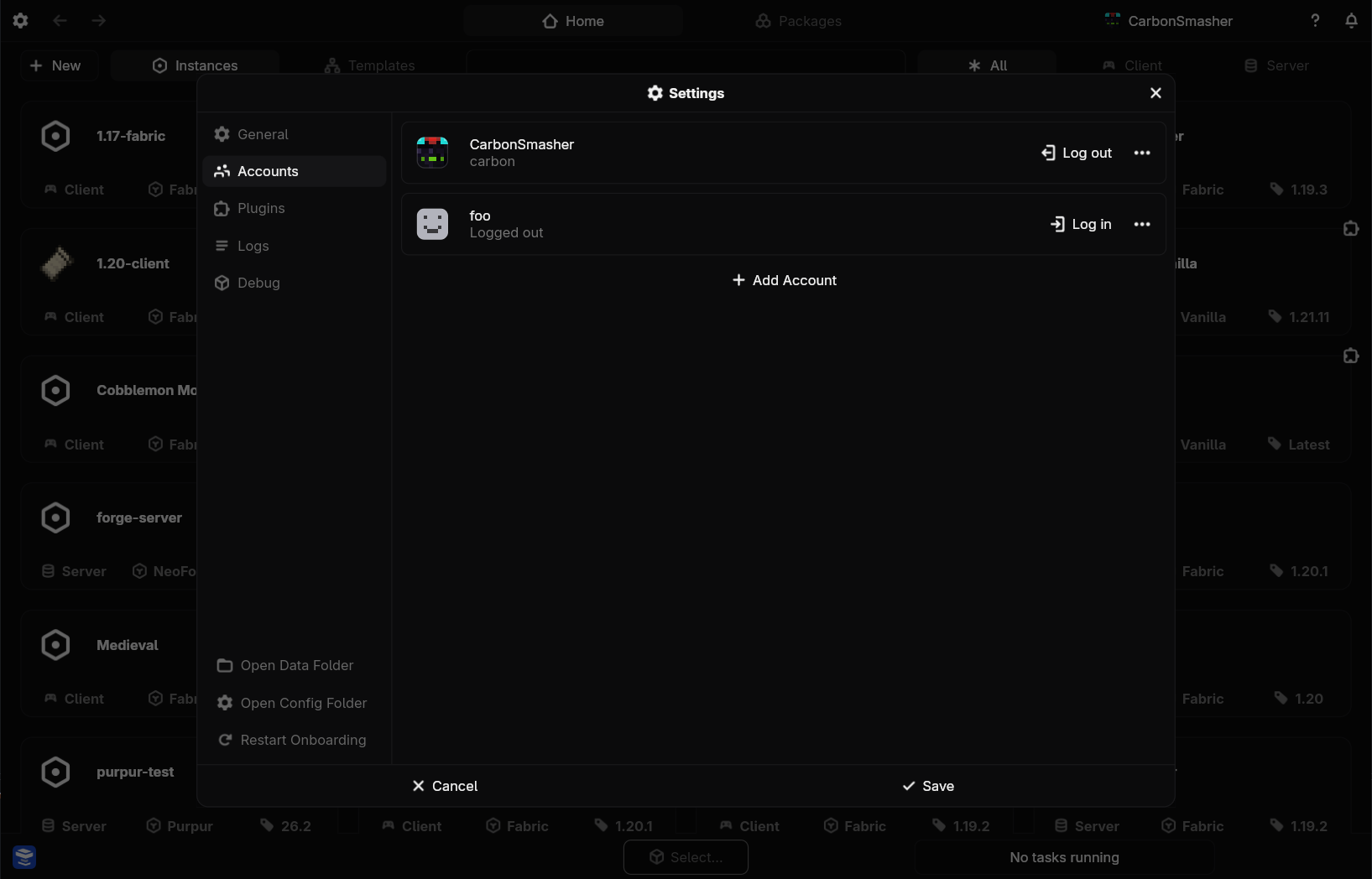
Click on the settings in the top left and go to the accounts tab. Click add account and fill out the fields for the account ID and type, then click save.
Run nitro account add and fill out the prompts for the account ID and type.
Switching Accounts
Whichever account you have selected will be used as the default for any operation, such as launching.
Use the account switcher in the top right to select the account you want.
Change the default_account field in your config using nitro config edit. You can also pass --account <account> to the nitro launch command.
Logging In
Launching an instance with a logged-out account will automatically bring up the login prompts, but you can also do it manually.
Go to the account settings and click log in on an account, then follow the prompts that come up shortly.
Run nitro account login <account> and follow the prompts.
Logging Out
Go to the account settings and click Log Out on the account.
Run nitro account logout <account>.
Removing Accounts
Go to the account settings and click the three dots on the account. Then click Delete.
Remove the account from your config with nitro config edit.
Launching Offline
Nitrolaunch supports offline launching as long as these two requirements are met:
- You have logged in with a Microsoft account that owns Minecraft while you were online.
- All of the files that are necessary for the instance to run are downloaded.
Make sure to do these things before you go offline, as you can't complete them without an internet connection. You should probably test the launch with your WiFi disconnected before you go offline for real.
Go to the instance page by double clicking it on the homepage or selecting it and the clicking the more options at the bottom. Then open the launch dropdown at the top and select Launch Offline.
Run nitro launch --offline <instance>.