Packages
Packages are a blanket term for content you can add to an instance, such as mods, resource packs, and datapacks.
Repositories
Repositories are simply sources for packages. Some examples:
- Modrinth
- Smithed
- CurseForge
By default, all of these repositories should be installed with their respective plugins. If not, I would recommend installing at least one of them now.
Installing a package
First, you have to find some packages to install.
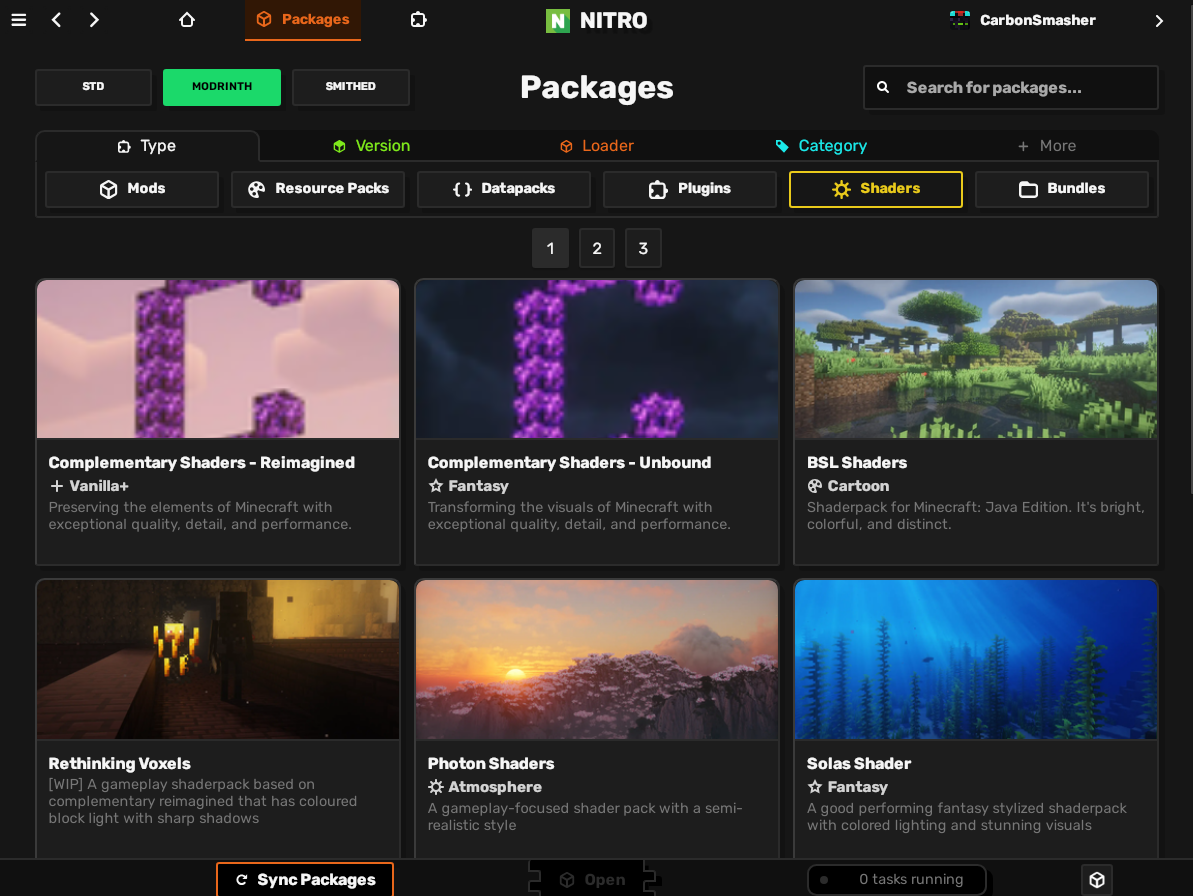
Navigate to the packages tab at the top to start browsing.
Run nitro package browse to enter the package browser. Keybinds are written in brackets next to items, and at the bottom. Press q to exit.
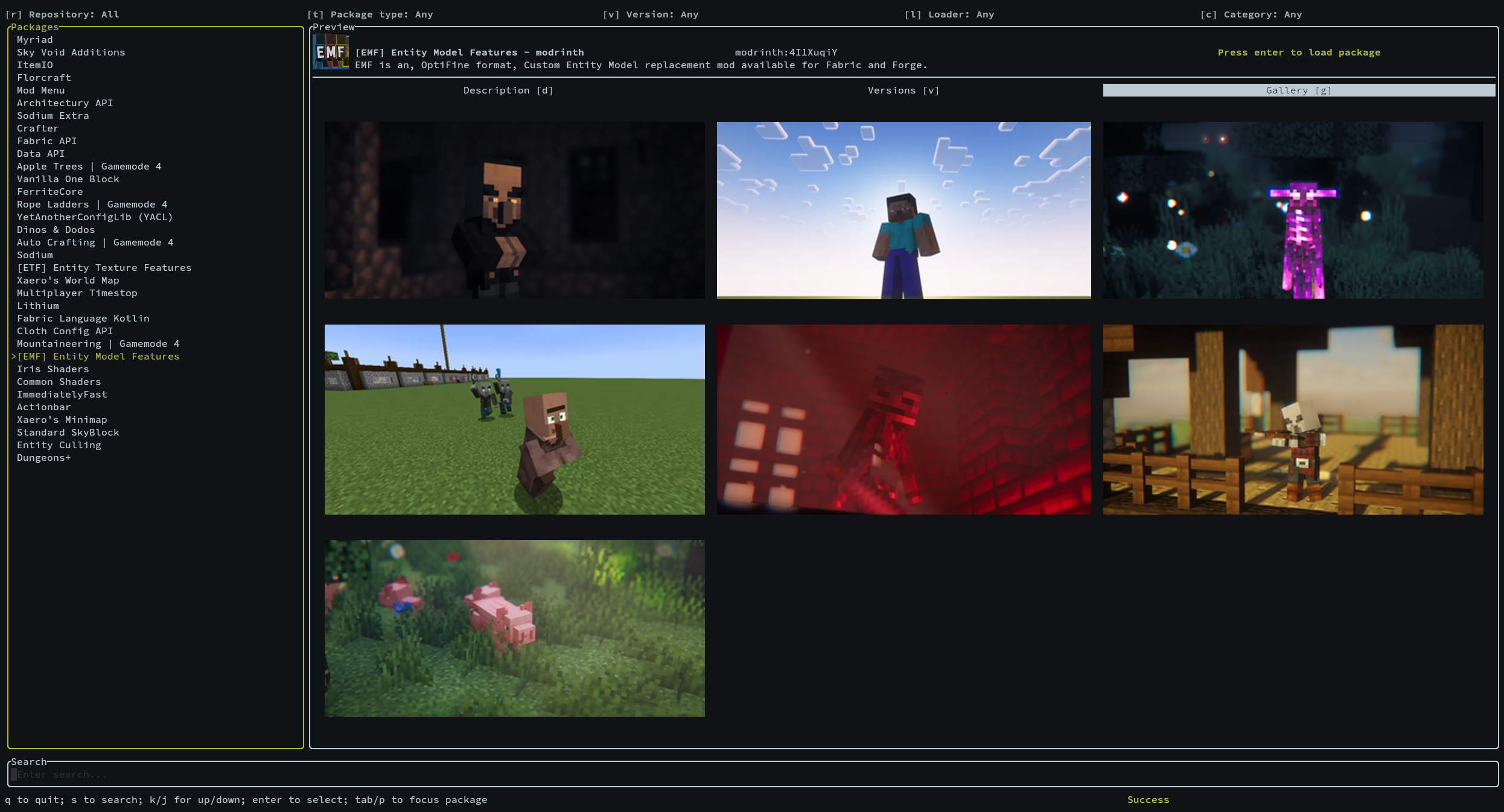
Use the filters at the top to select which repository to use, what types of packages to look for, and filter by other things like the loader or Minecraft version. By default, Nitrolaunch will search all repositories at once and combine the results.
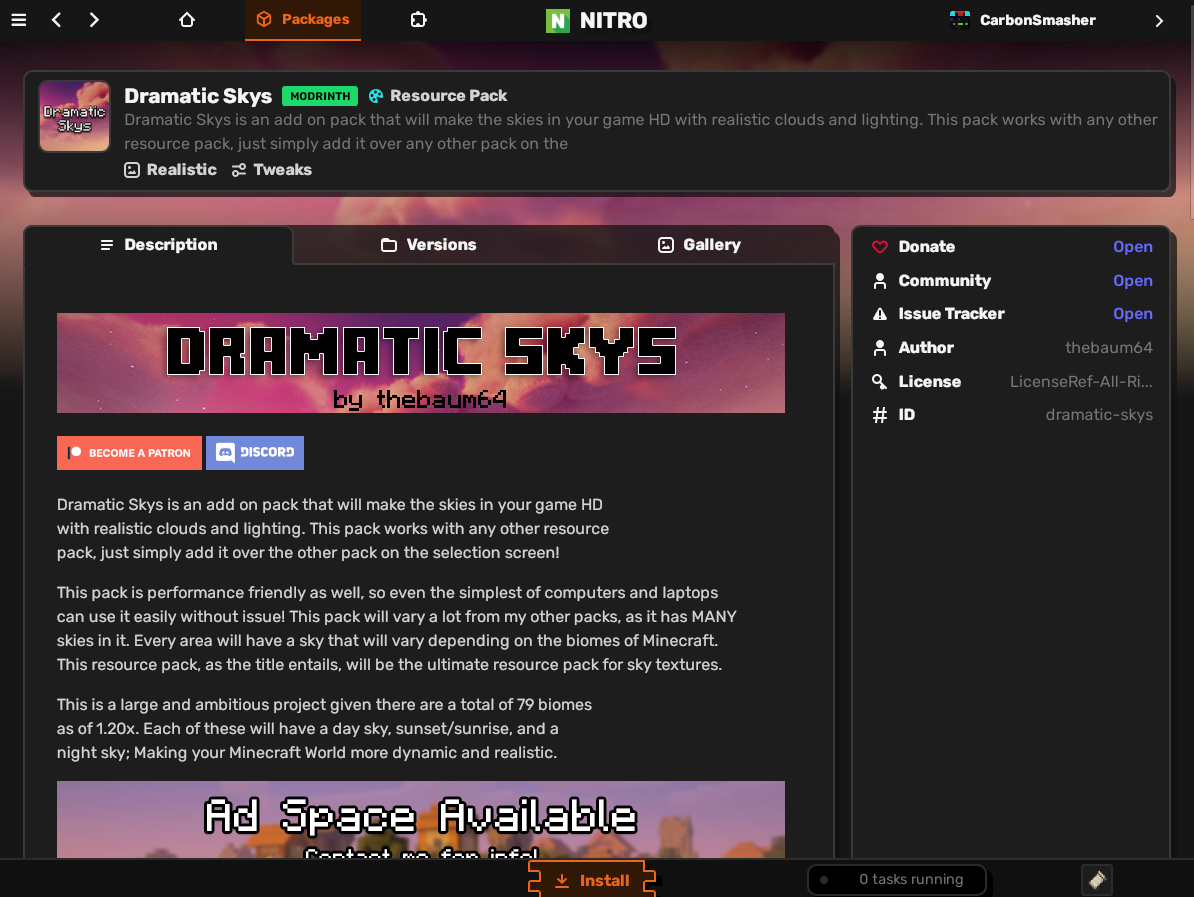
Start by either clicking the install button, or one of the install buttons on a version in the versions tab.
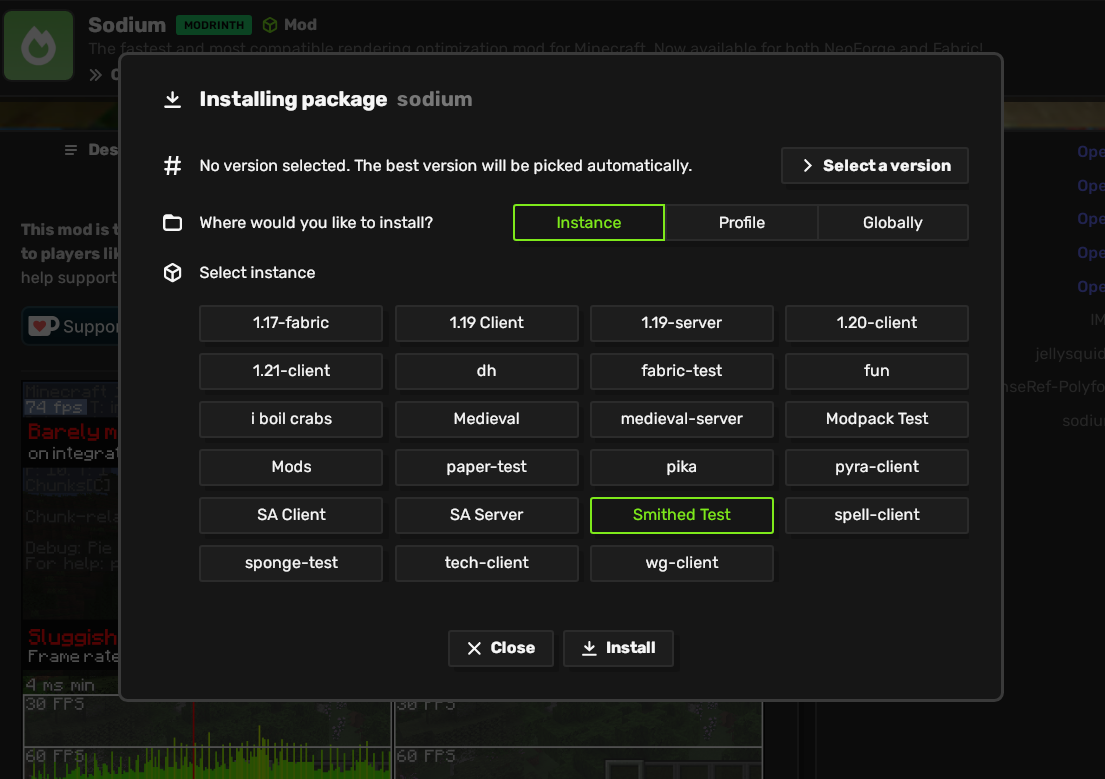
This will bring up a menu where you can pick which instance or template to install on.
Find the package you want and press i to bring up the install menu, or switch to the versions tab and press i on the version you want to install. Select the instance or template to install on.
The next time the instance launches, the package will be automatically installed.
The auto-install will not touch any other packages, and only add necessary dependencies. If you want to ensure that all of the versions match up with your existing packages, you should update the instance.
Updating Packages
Packages will be updated whenever you do a standard instance update. However, you can also update only the packages if you want a faster update or want to leave other instance attributes alone.
Navigate to the instance's content page, and click Update Packages to update.
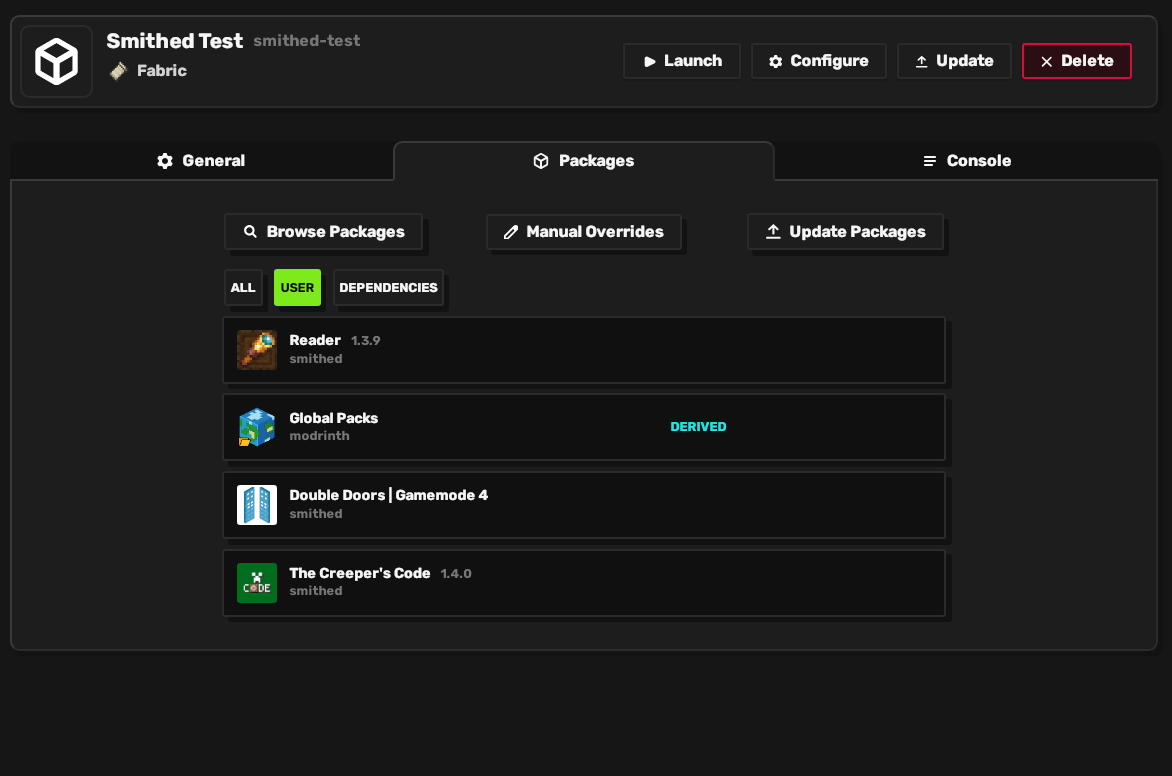
Run nitro instance update --packages.
Do not use in-game updaters
In-game mod updaters like ModMenu will not work properly with Nitrolaunch packages as updating will remove Nitrolaunch's file and replace it with an untracked one. Please do not use these updaters on Nitrolaunch packages.
Removing Packages
Navigate to the instance's content page, and click the 3 dots to bring up the remove option.
Use nitro instance edit and remove the package from the instance's configuration.
Package Versions
When you install a specific version of a package, Nitrolaunch will lock it to that version in your configuration. If you look at the configuration, it will be specified with @version after the package name.
This means that even if you update, that package will not change versions.
To unlock a package, follow these steps and then update your instance.
Go to the package's page and install it with the global install button rather than a specific version one.
Use nitro instance edit and remove the @version from the end.